Mymory
Solo designer · Team of 3 · 2022 · 6 months
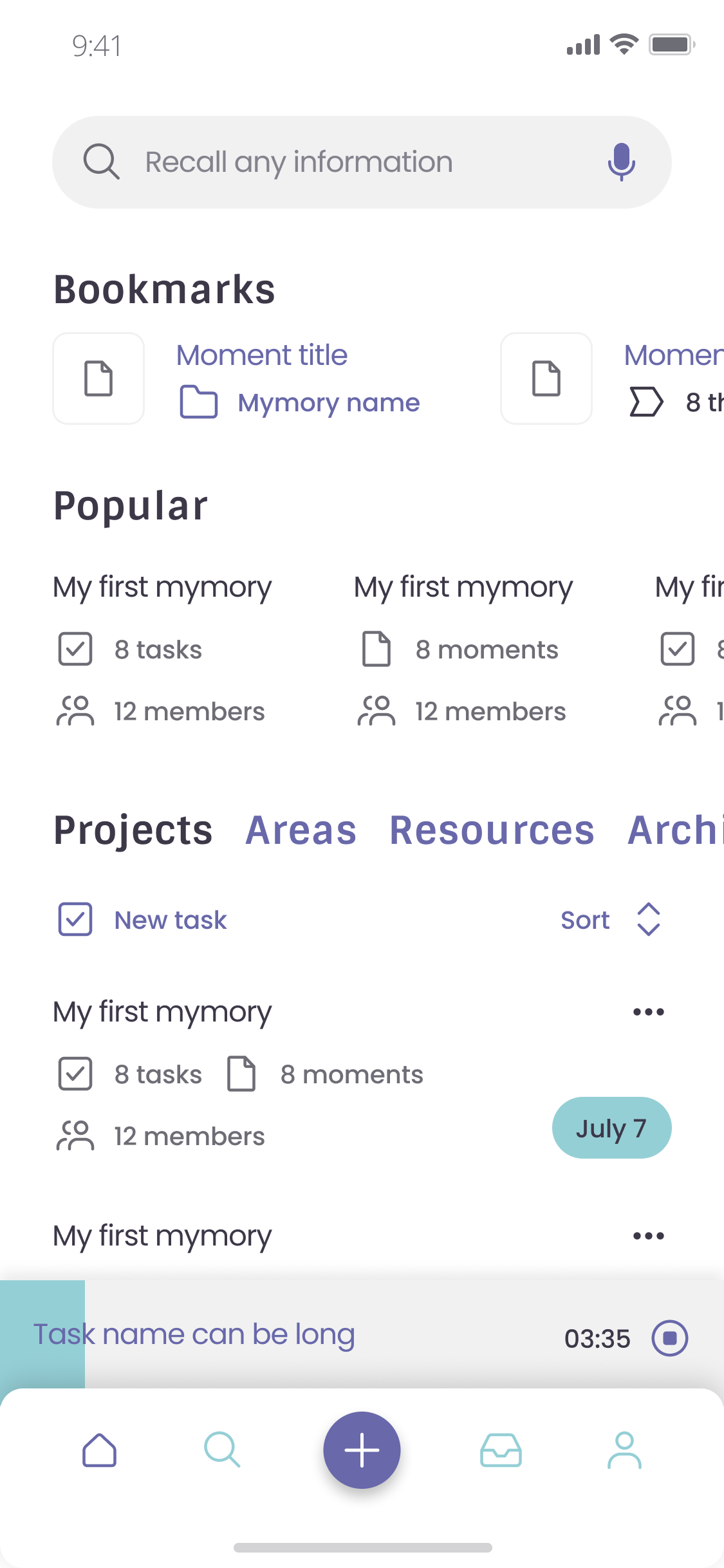
A personal productivity app for storing files and photos, where you can ask a question at any time. Like your own personal Google.
Users save mymories: a picture, file, voice note, video or even a URL. Each one becomes a note that can be edited and highlighted. Notes are organised into projects, areas and resources, and projects can have a deadline.
A search bar at the top of every screen lets users recall any information by typing or speaking a question.
Personal information is spread across photos, documents, voice notes and links. Finding something later means remembering where it was saved. Mymory set out to keep it all in one place and let users ask for it in plain language.
Solo designer in a team of three, with two developers, one of whom was also the manager. I designed the app end to end, from capture and search to organisation and empty states.
The project was discontinued. It went through a first prototype round with users, which changed its direction.
In the first prototype, people saw Mymory as just a storage app. We decided to make it more organisational and add features that help users work with what they save.
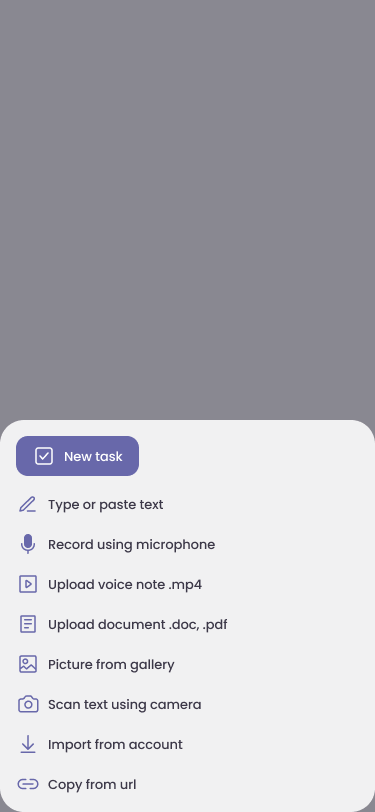
Anything can become a mymory
The add button opens one menu for every way of saving information. Whatever comes in, it becomes a note.
- Type or paste text
- Record using microphone or upload a voice note
- Upload a document (.doc, .pdf)
- Picture from gallery, or scan text using the camera
- Import from an account, or copy from a URL
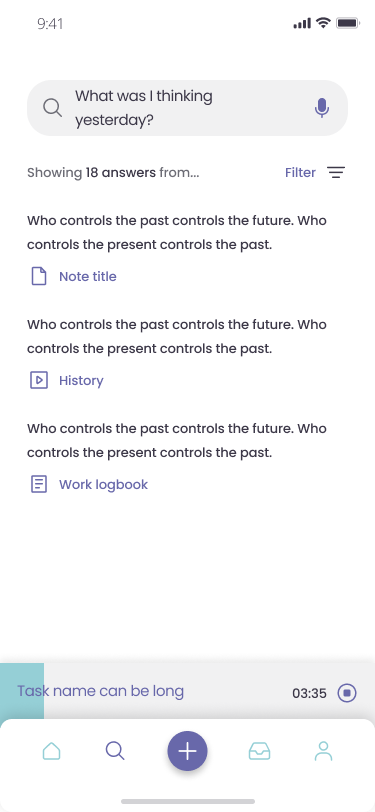
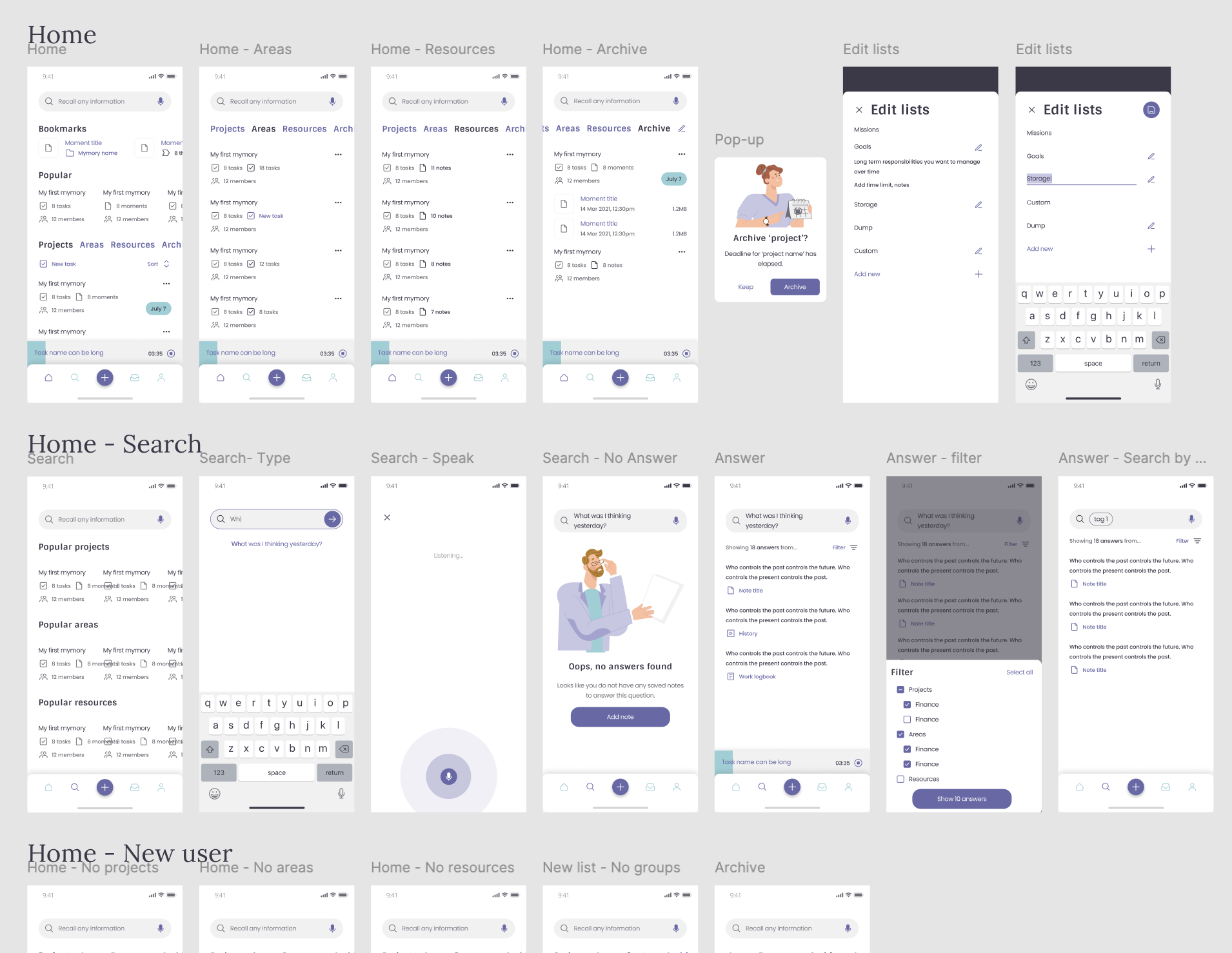
Recall any information
Users ask a question like "What was I thinking yesterday?" by typing or speaking. Answers show the matching passage and the note it came from, so users can open the source.
A filter narrows answers by project, area or resource. When nothing matches, the empty state suggests adding a note.
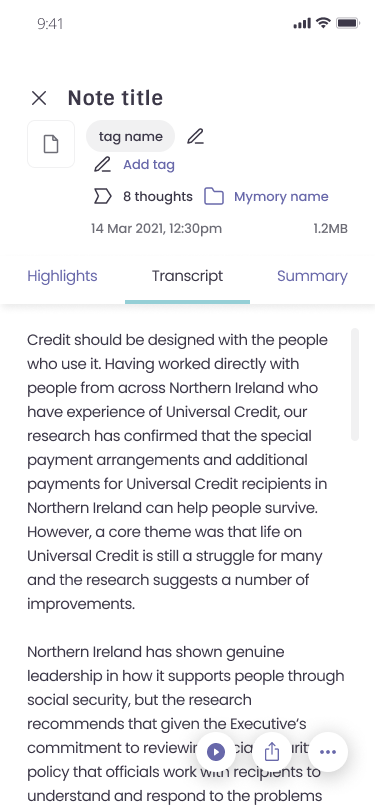
Notes you can edit and highlight
Each note shows its tags, the mymory it belongs to, how many thoughts it has, and when it was saved. Tabs switch between highlights, the transcript and a summary.
Users can edit the note and create highlights from any part of it.
Projects, areas and resources
When creating a group, users pick one of three mymory types. Each type explains what it is for and what it can hold.
Lists are editable, so users can rename them or add their own. When a project's deadline passes, a pop-up asks whether to keep it or archive it.
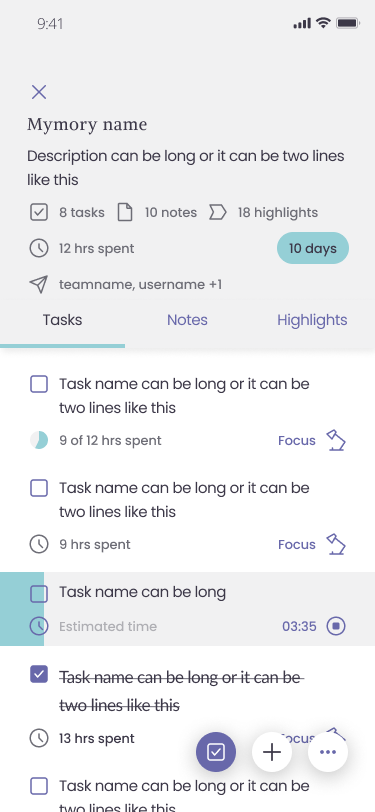
Tasks, notes and highlights together
A project page shows its description, counts of tasks, notes and highlights, time spent, days to the deadline and who it's shared with.
Tasks track hours spent against an estimate. A Focus mode starts a timer, which stays visible at the bottom of the app while users move around.
Highlights to share, thoughts to revisit
Users can highlight and share parts of their mymories with other users. The app also generates daily thoughts that users can interact with and save if they want.
Thoughts work like the answers users get from search, so they prompt users to search more.
- 01Put the search bar at the top of every screen, with voice input, so asking a question is always one tap away.
- 02Turn every input type into a note, so photos, voice, files and links can all be searched, edited and highlighted the same way.
- 03Show the source note with every answer, so users can check where it came from.
- 04After users saw it as storage, add structure with projects, areas and resources, plus highlights and clusters.
- 05Ask before archiving a project when its deadline passes.
The first prototype showed that storing and searching wasn't a strong enough reason to use the app. Testing early let us change direction before building, and moved the product toward organising and thinking with saved information.